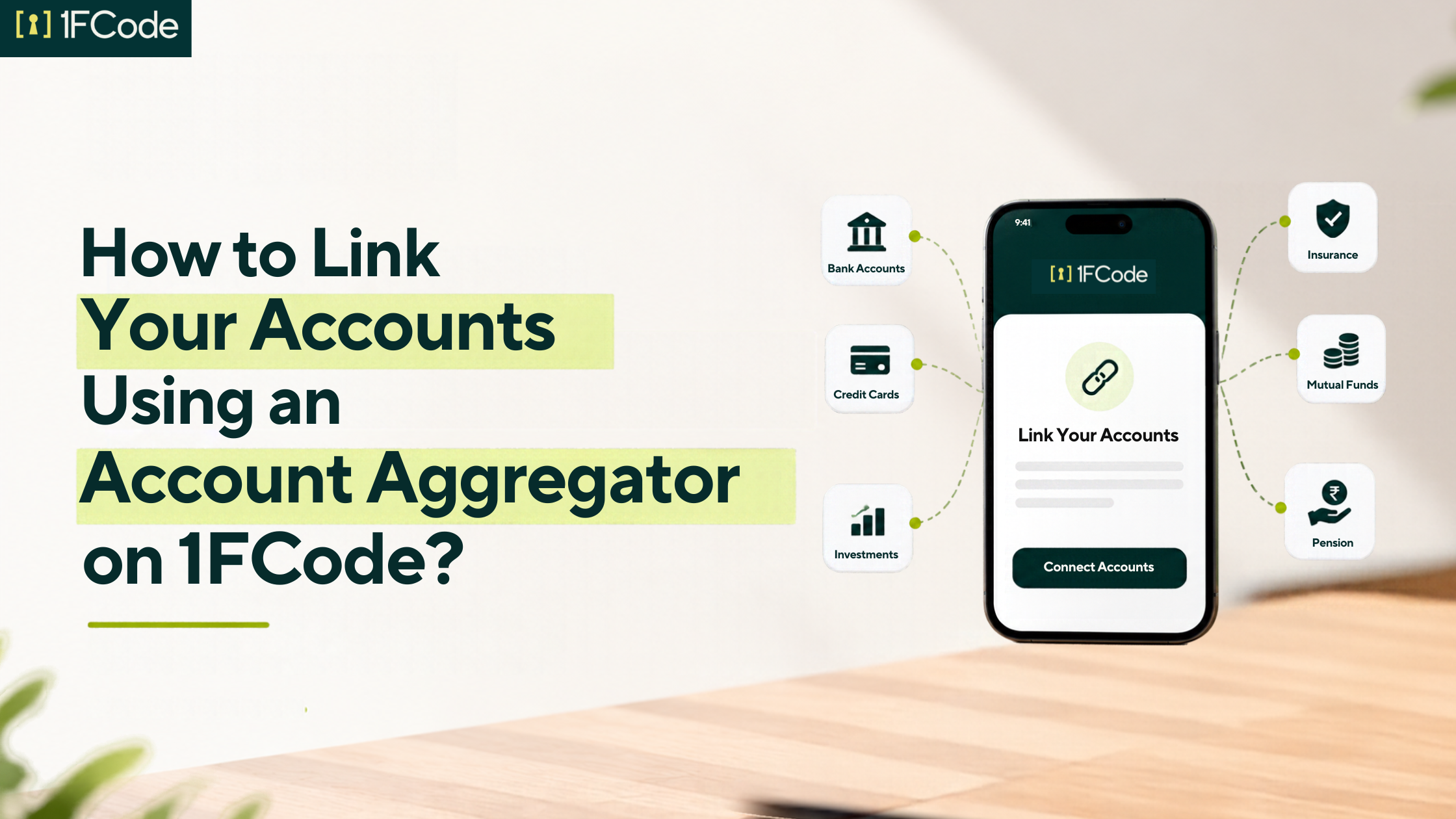
Think about how many apps you'd need to open just to check what you're actually worth today: one for your bank, another for your broker, maybe two or three more for different mutual funds, and one for each insurance policy. Your bank balance sits with one institution, stocks with a broker, mutual funds across different providers, and insurance with separate insurers. Keeping track of all of it usually means checking several platforms or updating the details yourself.
Account Aggregator on 1FCode offers another way to do this. You select a provider, approve consent through CAMSfinserv, and your information moves into the right section of your profile.
This keeps what you own in one clear record, today and for your family later. This blog explains how the process works and how it supports a more organised financial legacy.
What Is an Account Aggregator?
An Account Aggregator is an RBI-regulated entity that moves your financial information from one institution to another, only with your consent. It works like a secure pipeline between the place that holds your data and the service you want to share it with.
On 1FCode, that Account Aggregator is CAMSfinserv. It collects the information you approve from your bank, investment provider or insurer and passes it to 1FCode in encrypted form. It cannot read your data, and it cannot use your consent to make any change to your accounts.
How Does the Account Aggregator Flow Work on 1FCode?
The account aggregator journey begins within the financial record you want to connect. You can link bank accounts, mutual funds, stocks, and insurance policies on 1FCode.
Here’s how the journey works:
Step 1: Log in or Create Your 1FCode Profile
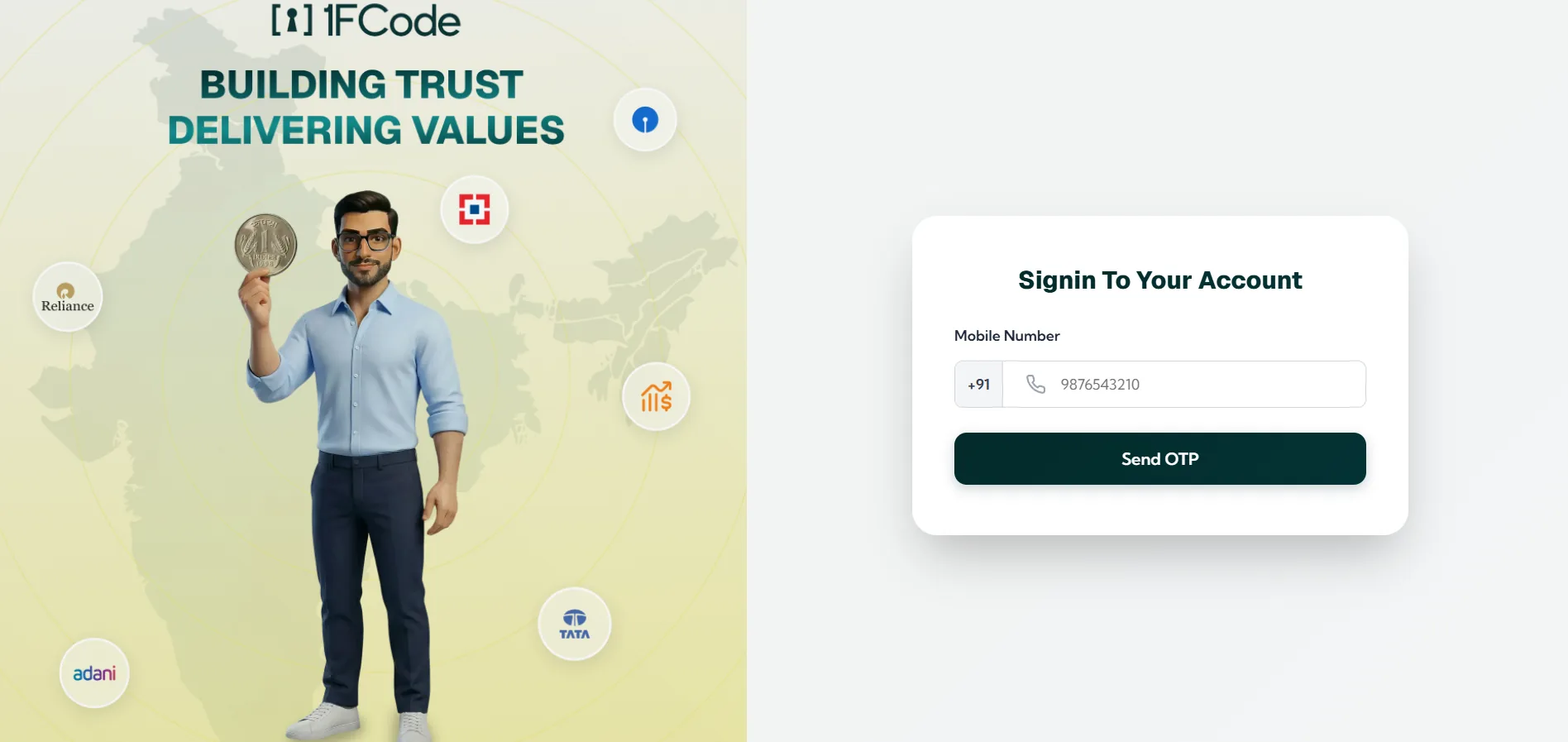 If you are a new user, sign up using your mobile number and verify it with the OTP sent to you. Then enter your details, such as your name, date of birth, PAN, and a photo, to complete your profile. If you already have a 1FCode account, log in using your registered mobile number.
Step 2: Choose the Financial Record You Want to Connect
The route to each category differs slightly between the mobile app and the web platform:
On the 1FCode Mobile App 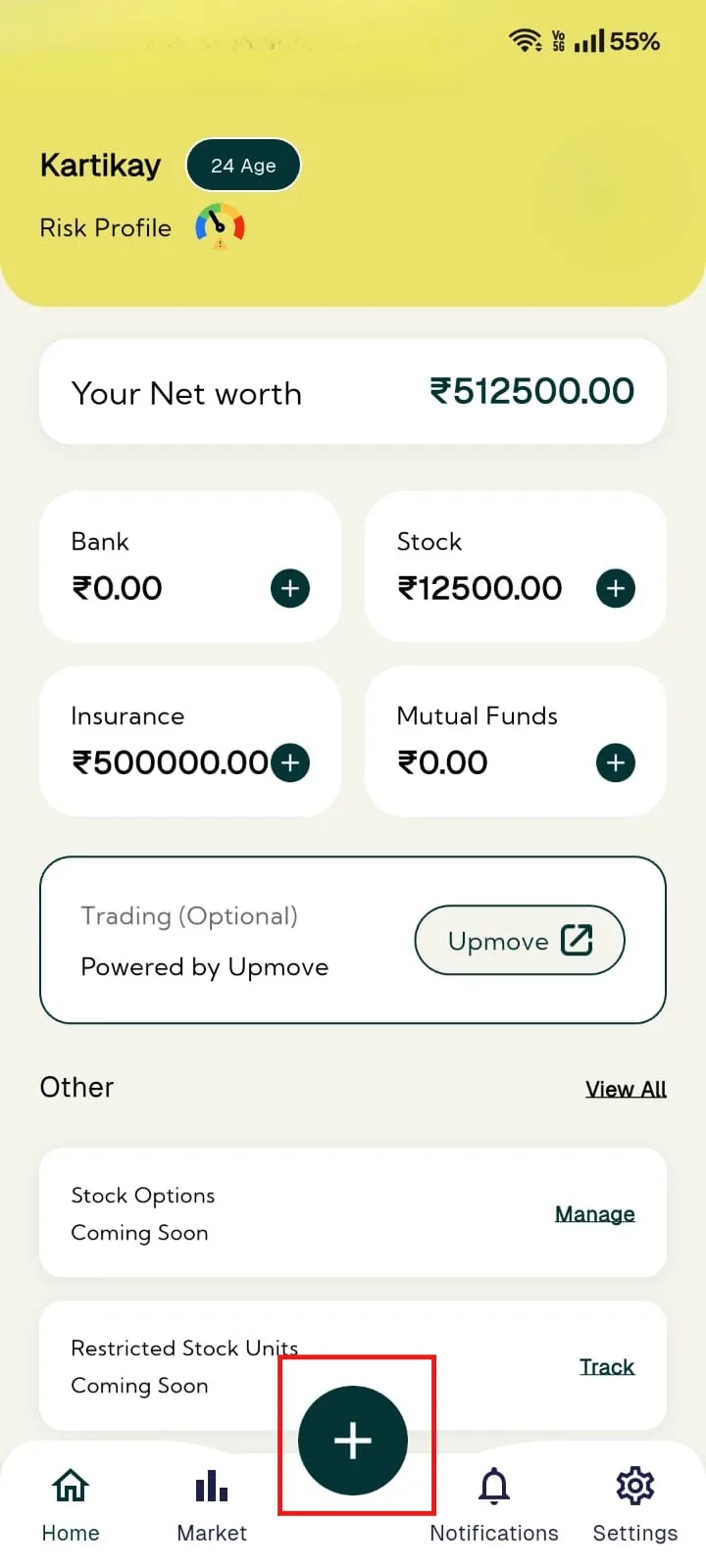 After you log in, you land on your dashboard. Tap the "+" icon to see the available categories.
- Tap Bank Accounts, then tap Link Bank.
- Tap Mutual Funds, then tap Link Mutual Fund.
- Tap Insurance, then tap Link Insurance.
- Tap Equity, then tap Link Equities.
On the 1FCode Web Platform 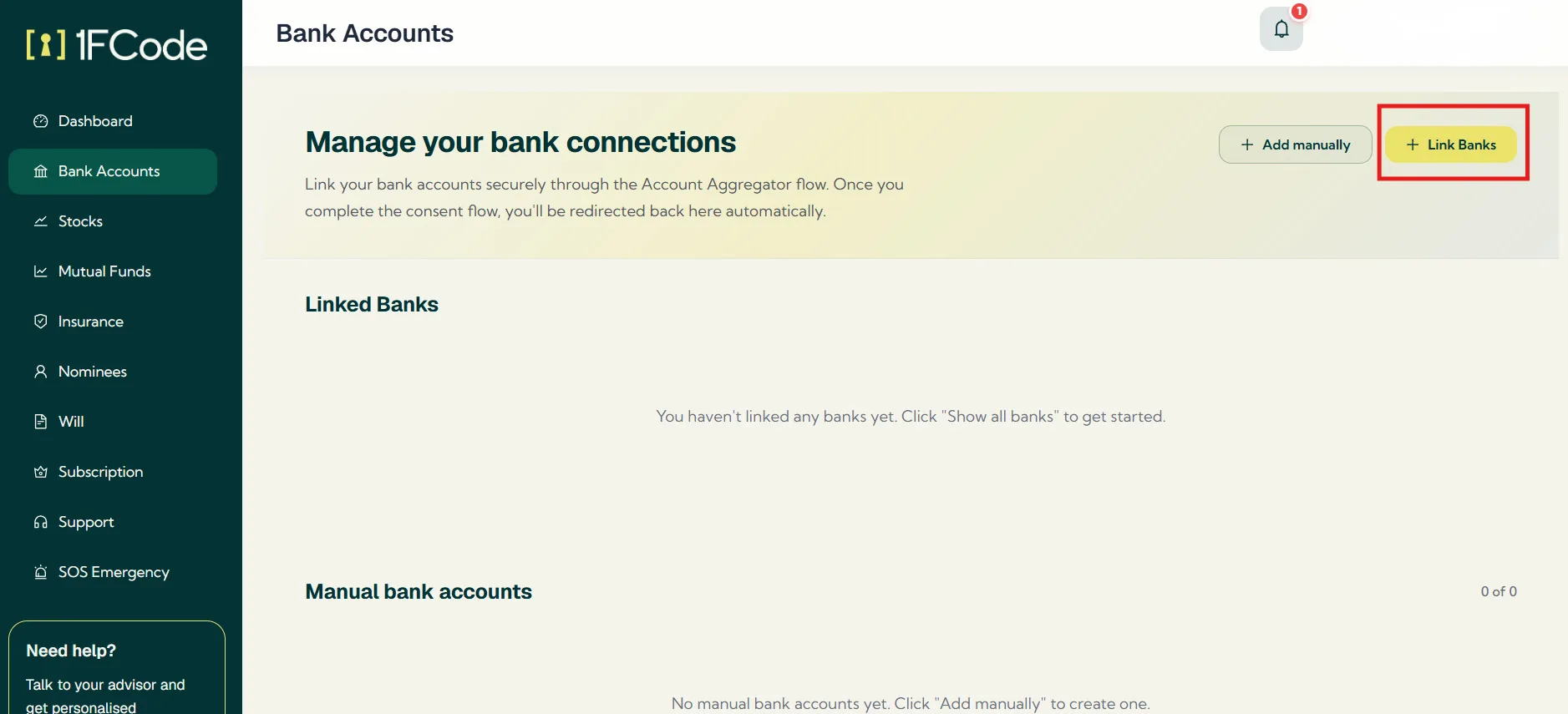 The four categories are available through the left-hand menu once you log in or sign up:
- Open Bank Accounts and select Link Banks.
- Open Stocks and select Show all stock providers.
- Open Mutual Funds and select Show all mutual fund providers.
- Open Insurance and tap on View all insurance providers.
Step 3: Select the Institution That Holds the Information
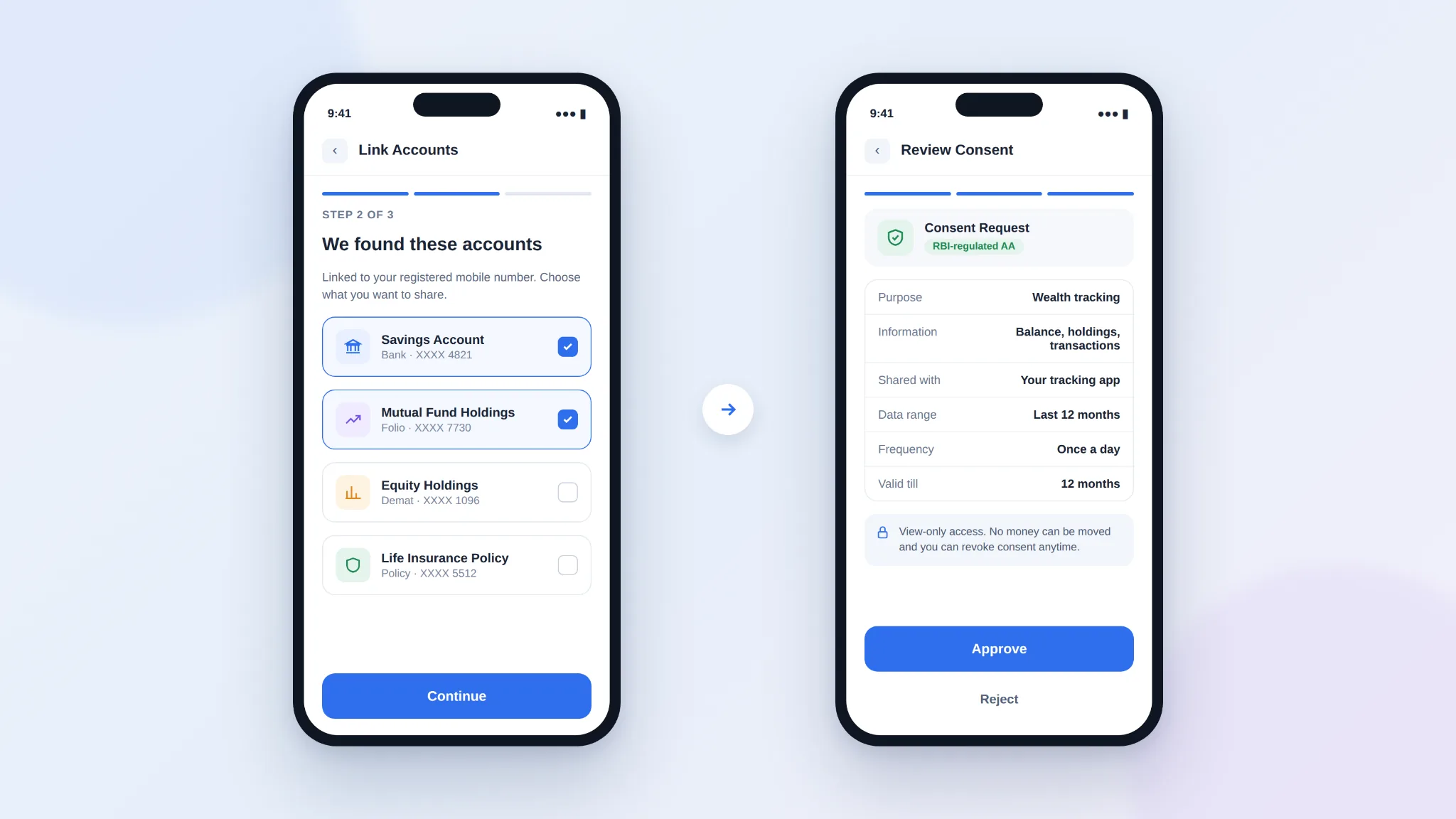 Choose the bank, stock provider, mutual fund provider or insurer that holds the record you want to bring in. This tells 1FCode where your information sits. Opening the provider list does not fetch anything. Nothing moves until you approve it in the next steps. If your institution is not listed, go back to the category and add the details manually.
Want to learn how manual tracking works? Read: Manual vs automatic tracking
Step 4: Continue Through CAMSfinserv
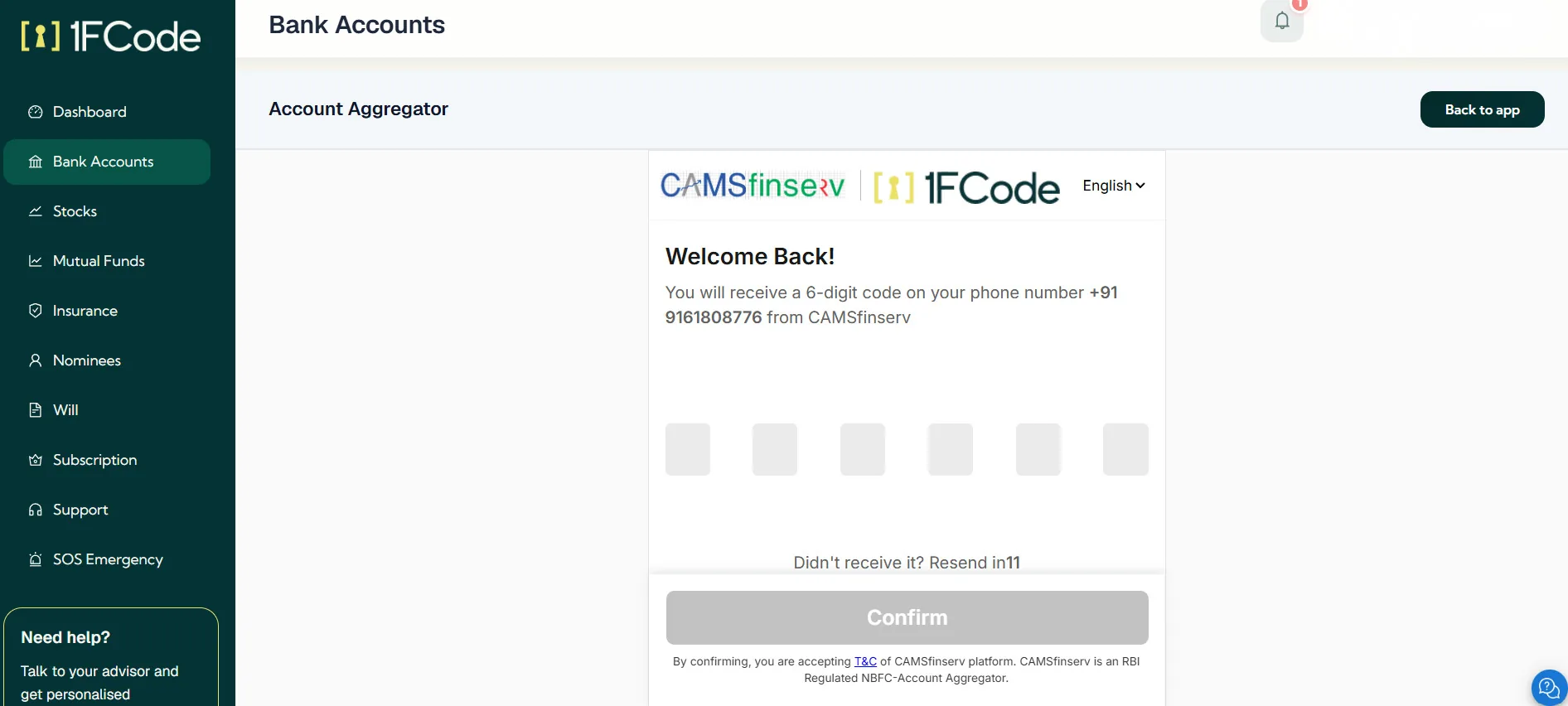 After selecting the provider, 1FCode directs you to CAMSfinserv. CAMSfinserv is an RBI-regulated Account Aggregator.
It requests the information from your chosen institution and shares it with 1FCode only after you approve. Your bank, investment provider or insurer still holds and maintains the original record.
Step 5: Complete the Required Authentication
Authenticate the connection using the method shown on the screen. This may include an OTP sent to the mobile number registered with the relevant financial institution.
This step helps CAMSfinserv identify you and find the eligible accounts, holdings or policies associated with your registered details. If more than one eligible item is found, review the options and select what you want to include.
Step 6: Review the Consent Request
CAMSfinserv will show you a consent request before sharing anything. It should tell you:
- What information is being requested
- Why it is required
- Who will receive it
- When the consent will expire
You can proceed only if you agree to share the requested information. Connecting a record does not give 1FCode unrestricted access to your financial accounts.
You can also withdraw your consent later. Once you do, no new data will be fetched under it.
Note: Your approval only allows information to be shared. It cannot be used to move money, buy or sell investments, change a policy or make any change to your account. Account Aggregators cannot ask for your banking or investment passwords. The data also passes through them in encrypted form, so they cannot read it.
Step 7: Return to 1FCode and Review the Fetched Record
After the CAMSfinserv journey is completed, you return to 1FCode. The available information is placed in the category from which you started:
- Bank details under Bank Accounts
- Equity holdings under Stocks
- Mutual fund holdings under Mutual Funds
- Policy information under Insurance
These entries can also contribute to the category totals and wider net-worth view shown on your 1FCode dashboard. Review what has been added before moving to another category or provider. If an amount or holding differs from the original institution’s records, the information maintained by that institution should be treated as the correct position.
You can also calculate your net worth using 1FCode’s net worth calculator.
Build a Clearer Financial Record, One Link at a Time
A legacy is not only for the wealthy. It is whatever you have built, whether that is a savings account, a few SIPs or a single insurance policy. What makes it a legacy is that it is recorded, accounted for and ready to pass on.
That is the real value of aligning your financial records. When your records match what you actually own, less is likely to be forgotten, missed, or left unclaimed. Every account has a clear owner, a clear value, and a clear path forward.
1FCode is built around that idea. Account Aggregator brings your records in. Your dashboard shows your net worth across every category. The 'Nominees' section lets you record who you'd like each asset to go to, and 'Will Management' keeps your signed will alongside the assets it covers.
Together, they turn what you own into something your family can carry forward. Start with the records you have today, and let 1FCode help you shape them into a legacy.
Download the app from Google Play or the App Store.
Frequently Asked Questions
1. Can 1FCode make transactions from my linked accounts?
No. Your consent only allows 1FCode to view your information. It cannot be used to move money, buy or sell investments, or change a policy.
2. Can I stop sharing my data after linking an account?
Yes. You can withdraw your consent at any time through the CAMSfinserv portal. Log in with your registered mobile number, find the consent you want to stop and revoke it. Once you do, no new information is fetched under that consent.
3. What if my bank or provider is not listed?
You can add the details manually from the same category. Your manually added records sit alongside your linked ones on your dashboard.
4. Will linking my accounts affect my credit score?
No. Sharing your financial information through Account Aggregator is not a credit enquiry, so it has no effect on your credit score.
5. What if my mobile number is different from the one registered with my bank?
The OTP is sent to the number registered with your financial institution. Make sure you can access that number before you begin, or update it with your institution first.