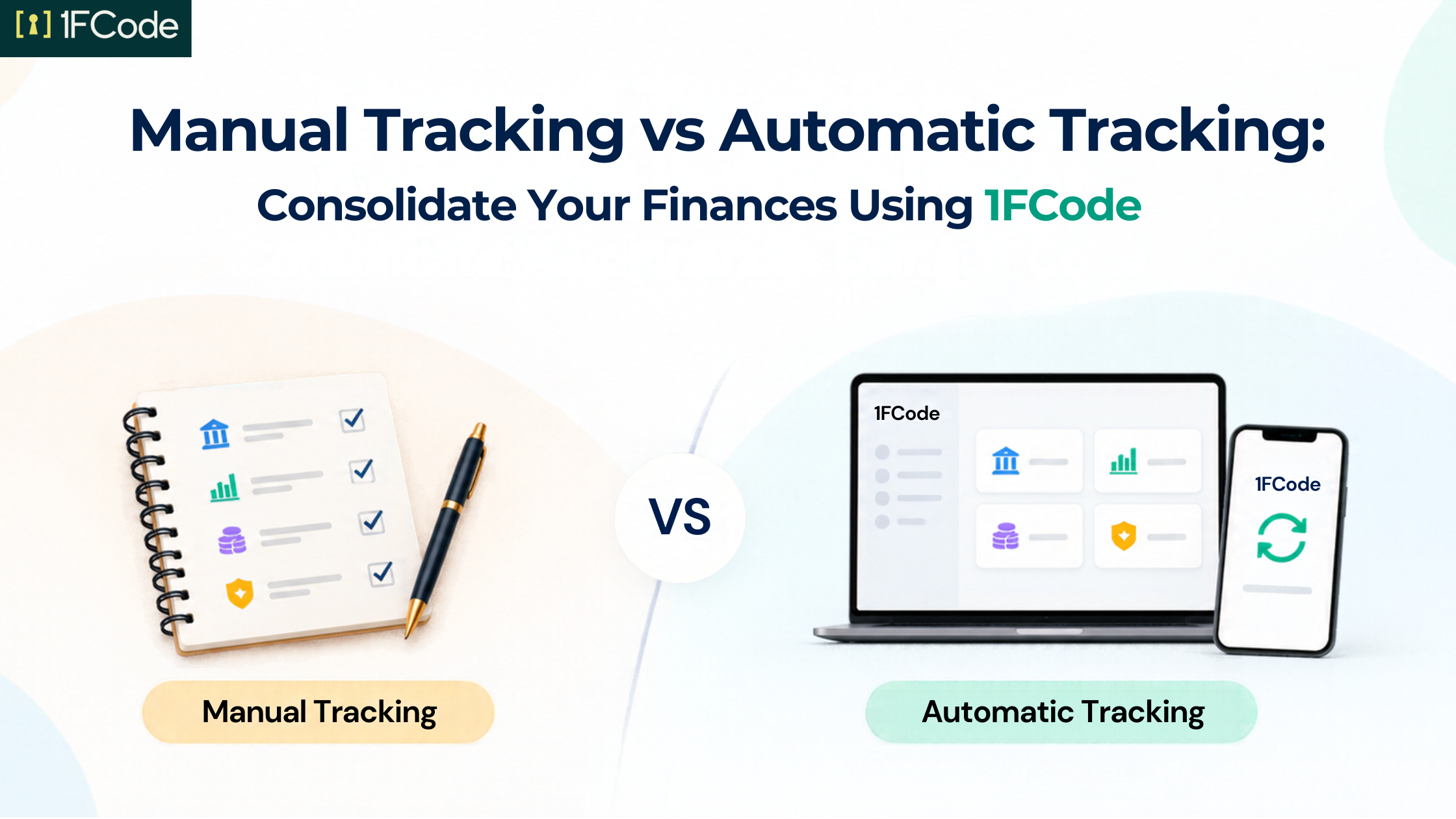
Open your banking app, then your demat account, then check your last insurance renewal email. That's three separate logins, three separate views, and still no single answer to "what do I actually own right now?" Your financial information rarely lives in one place. Bank accounts sit with different banks, investments are spread across platforms, and insurance records may exist in entirely separate portals or documents.
1FCode lets you bring Bank Accounts, Stocks, Mutual Funds and Insurance into a more connected view in two ways: by adding the information manually or by connecting supported providers through the Account Aggregator flow.
This blog explains how both methods work and where the difference matters.
How Manual Tracking Works on 1FCode
Manual tracking is the more hands-on way to build your financial record on 1FCode. You add each bank account, stock holding, mutual fund, or insurance policy using information from your statements, investment records, or policy documents. The process is largely the same on the 1FCode mobile app and web platform.
Step 1: Select the Financial Asset You Want to Add
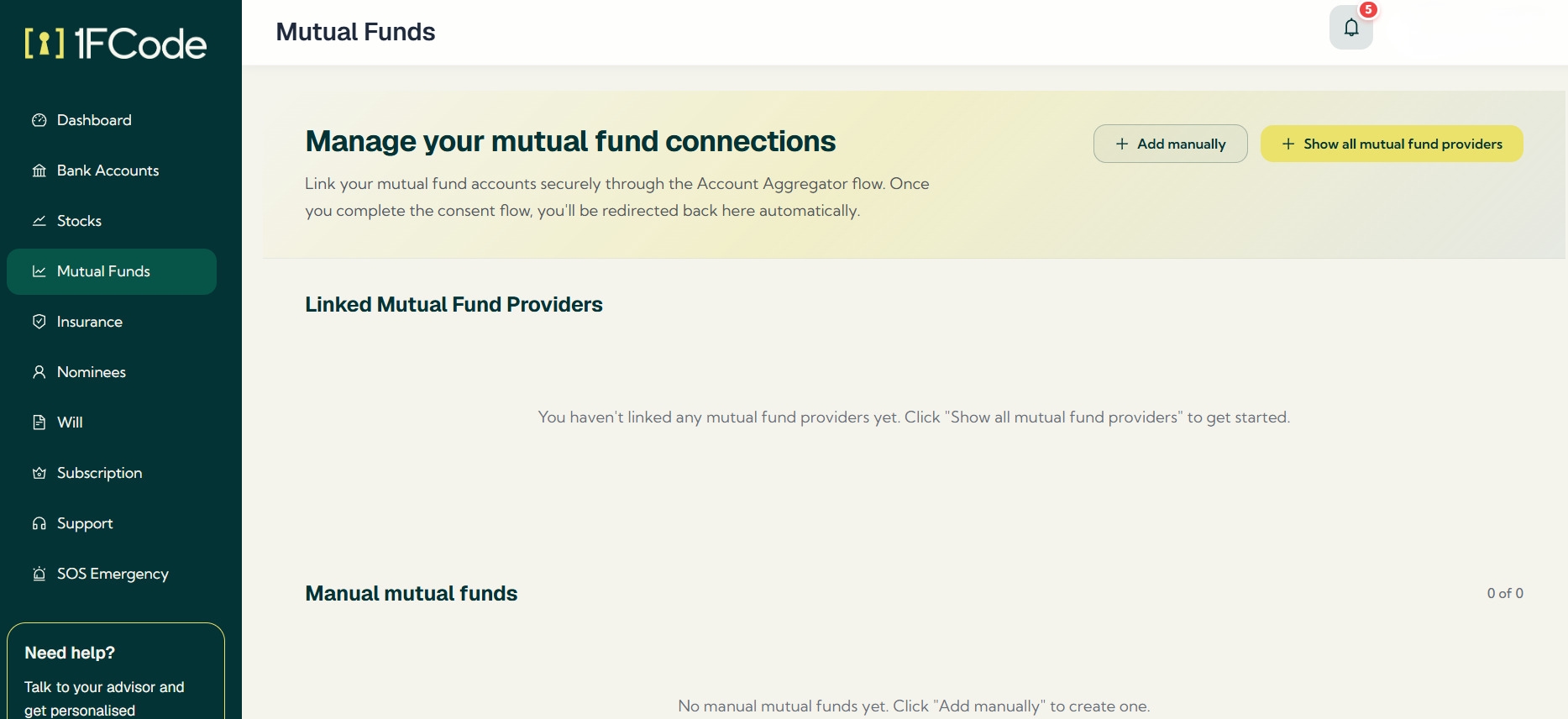 Open the relevant section for the financial asset you want to record:
- Bank Accounts
- Stocks or Equity
- Mutual Funds
- Insurance
On the web platform, these sections appear in the left-hand menu. On the mobile app, open the relevant financial category from your account.
Step 2: Choose Add Manually
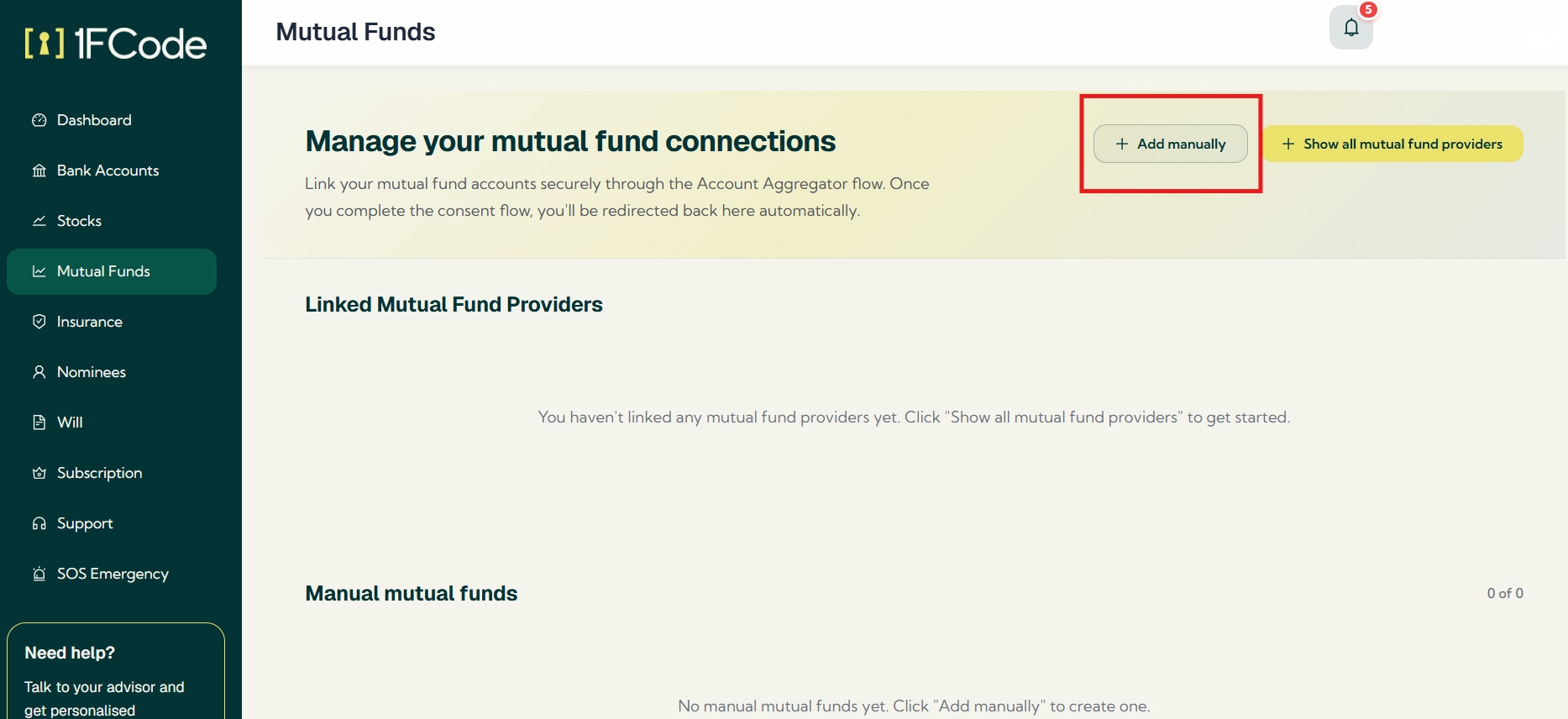 Select “Add manually” instead of the option to link a financial provider. It opens a form where you can enter the information for that particular asset yourself.
Step 3: Enter the Details for Your Financial Asset
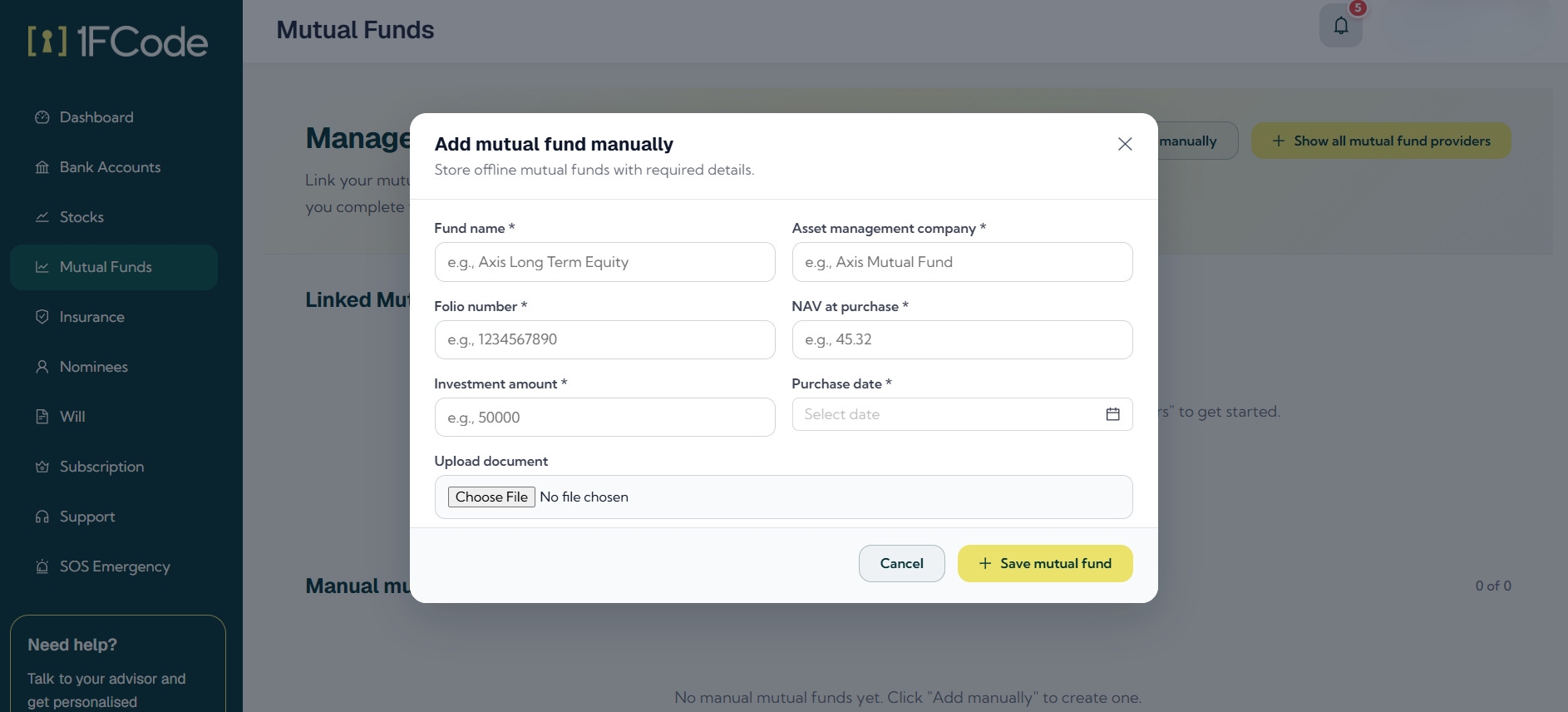 Keep the relevant statement, investment record or policy document available and enter the details shown in the form.
| Financial asset | Details to enter |
|---|---|
| Bank Accounts | Account Holder Name, Bank Name, Branch Name, Account Type, IFSC Code, Balance, Statement and ‘Notes’ |
| Stocks | Stock Name, Stock Symbol, Number of Shares, Purchase Price per Share, and Purchase Date |
| Mutual Funds | Fund Name, AMC or Asset Management Company, Folio Number, Investment Amount, Purchase Date, and NAV at Purchase |
| Insurance | Policy Name, Policy Number, Insurance Provider, Sum Assured, Premium Amount, Premium Frequency, Start Date, and Maturity Date |
|Note: On mobile, Account Type and Premium Frequency use dropdown menus while, on 1FCode’s web interface, these appear as text fields.
Step 4: Add the Supporting Document Where Applicable
The manual forms also let you upload supporting information. For example, you can upload a bank statement while adding a bank account or a document while recording assets. This keeps the financial details and related records together in 1FCode.
Step 5: Save the Financial Record
After you enter the details, save the record. The information then appears in the relevant financial section of 1FCode under bank accounts, mutual funds, stocks, or insurance. You can also view, edit, or delete manually added records to keep the information up to date.
How Consent-Based Automated Tracking Works on 1FCode
Automatic tracking works differently because you do not enter each financial record yourself. Instead, you connect a supported financial provider to 1FCode through the Account Aggregator flow and consent to share the relevant financial information.
Step 1: Select the Financial Asset You Want to Connect
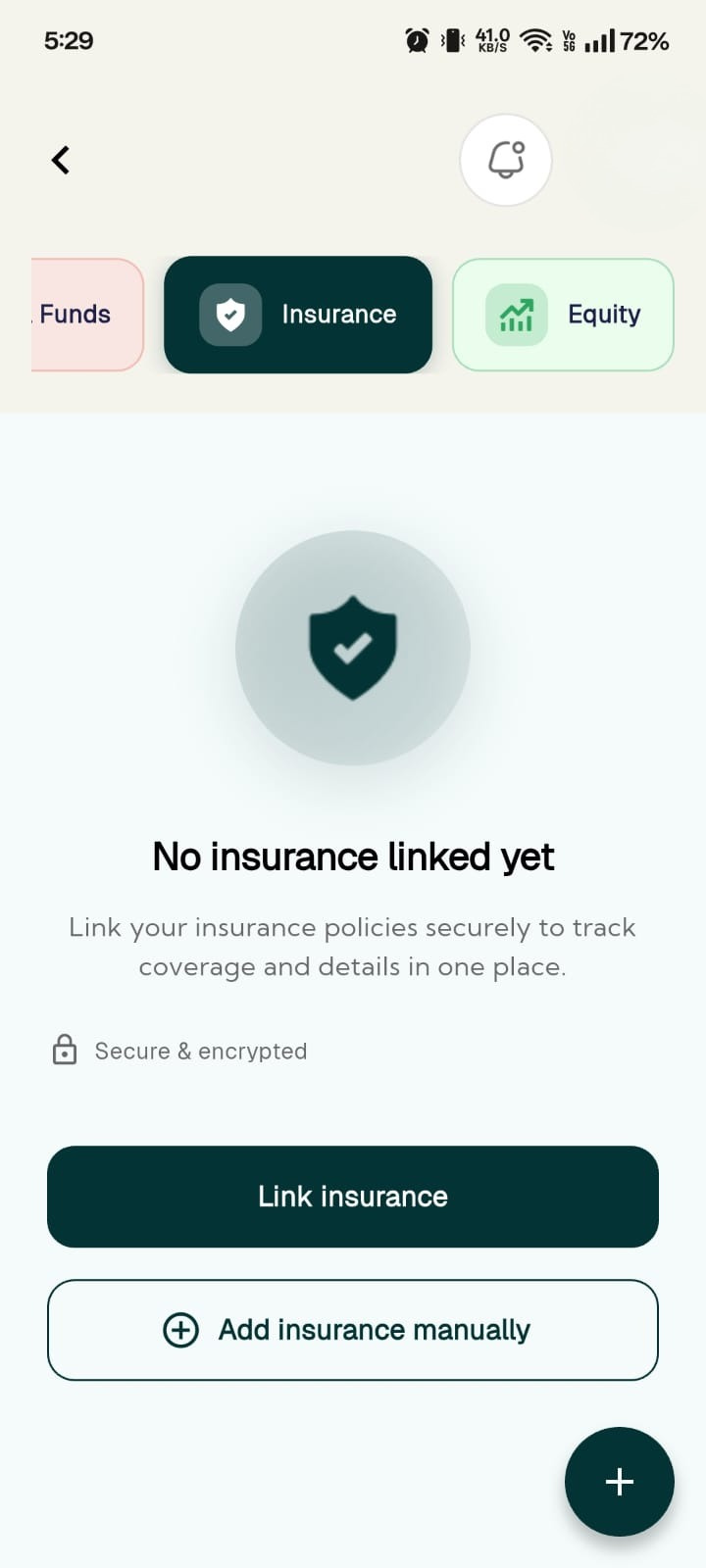 Open the relevant section for:
- Bank Accounts
- Stocks
- Mutual Funds
- Insurance
Instead of choosing “Add manually”, select the option to connect a provider. For example, the web platform shows “Link Banks” for bank accounts and “Show all stock providers” for stocks, with corresponding provider options for mutual funds and insurance.
Step 2: Continue Through the CAMSFinServ Account Aggregator Flow
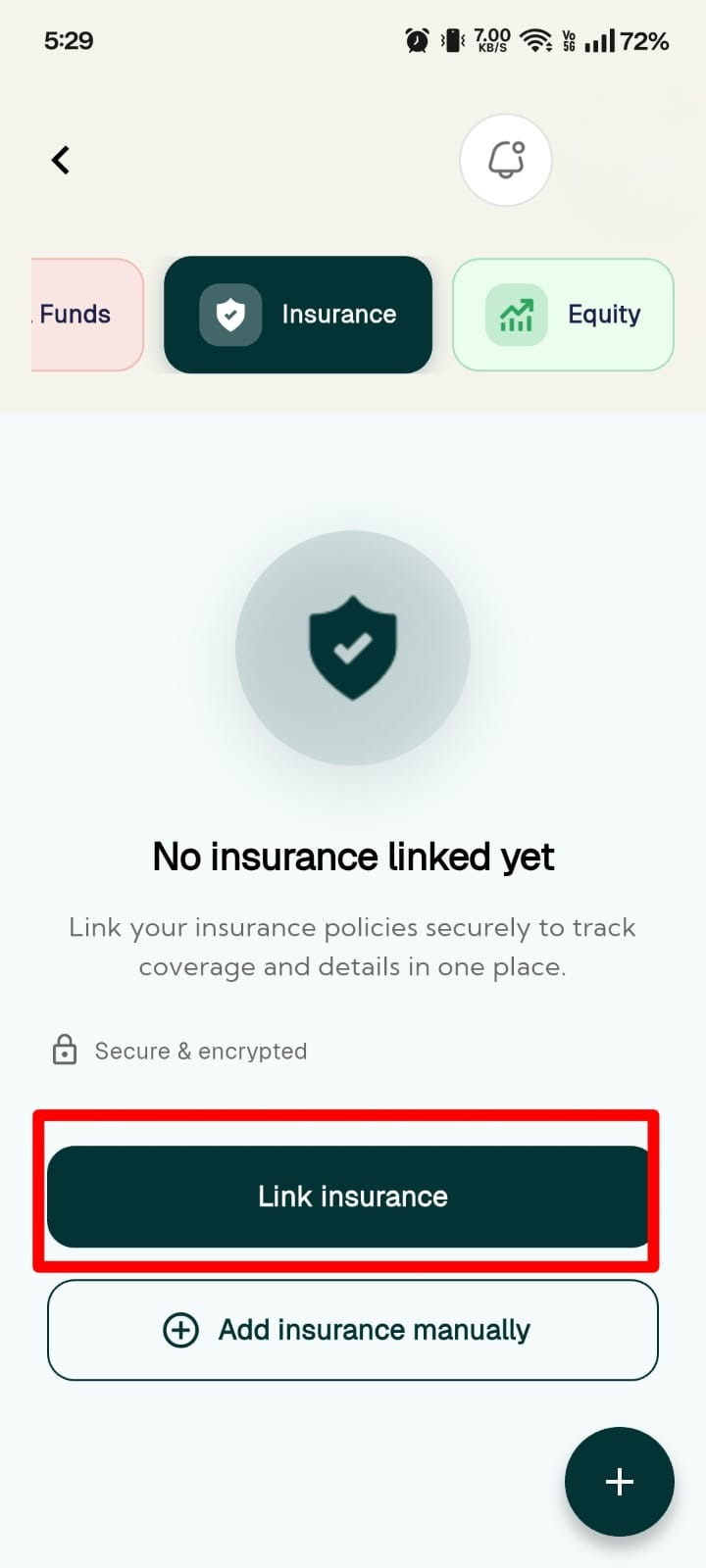 Follow the connection prompts into the CAMSFinServ flow. Complete the on-screen verification and provider or account-selection steps for the financial information you want to connect. The available providers determine which accounts or records you can connect through this method.
Step 3: Review and Give Your Consent
Read the consent request before approving it. Check which financial information you are authorising to share and the terms shown in the request. Your consent allows the relevant information to be fetched through the Account Aggregator connection.
Step 4: Return to 1FCode and Review the Information
Once the consent flow is complete, you are redirected back to 1FCode. Review the connection and the available information in the relevant assets section. The information available through automatic tracking depends on the supported provider and your consent.
Bring Your Financial Records Into One Connected View
A complete financial view does not have to depend on a single tracking method. Some records may be easier to add manually, while others can be connected through the Account Aggregator flow. What matters is having a clearer record of your bank accounts, stocks, mutual funds and insurance in one place.
1FCode gives you the flexibility to use both approaches within the same platform. You can connect supported providers and manually maintain the records you want to add yourself. Over time, that consolidated picture becomes less about today's balances and more about legacy management, keeping the full record current so it's ready whenever you or your family need it.
FAQs
1. Can I use manual and automatic tracking together on 1FCode?
Yes. You can connect supported accounts through the Account Aggregator flow and manually add other financial records within the same platform.
2. What if my financial provider isn't available for automatic tracking?
You can use “Add manually” to record your bank account, stock holding, mutual fund or insurance policy. You will need to maintain that information yourself.
3. Does uploading a statement enable automatic tracking?
No. Uploading a statement or document attaches it to your manual record. Automatic tracking requires connecting a supported provider through the consent-based Account Aggregator flow.
4. Does adding stocks or mutual funds to 1FCode mean I'm investing through it?
No. Adding these details creates a record of investments you already hold. It doesn't place a trade or purchase mutual fund units.